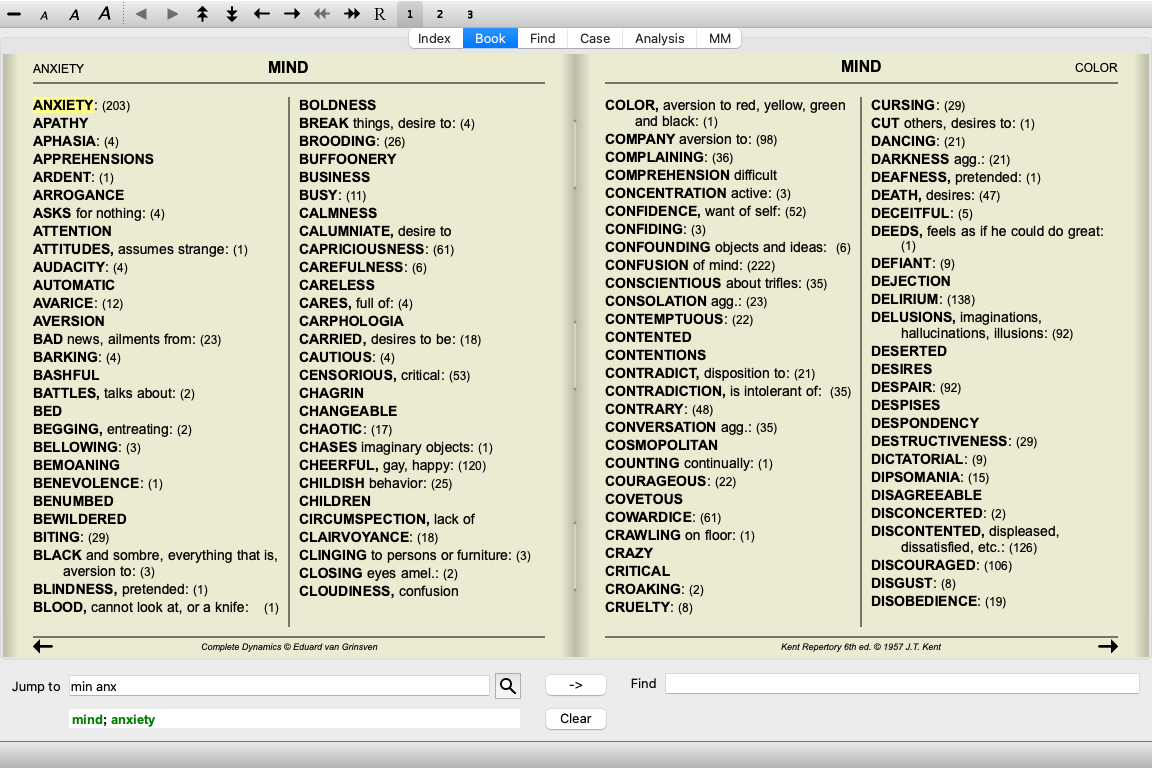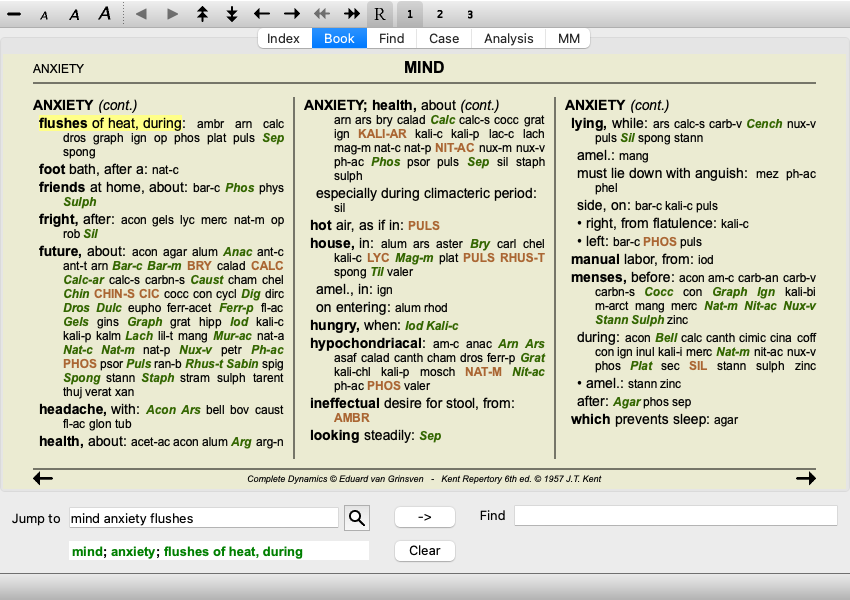
Go to the Book module by clicking on the Book tab. (Menu option View / Book, ⌘-B).
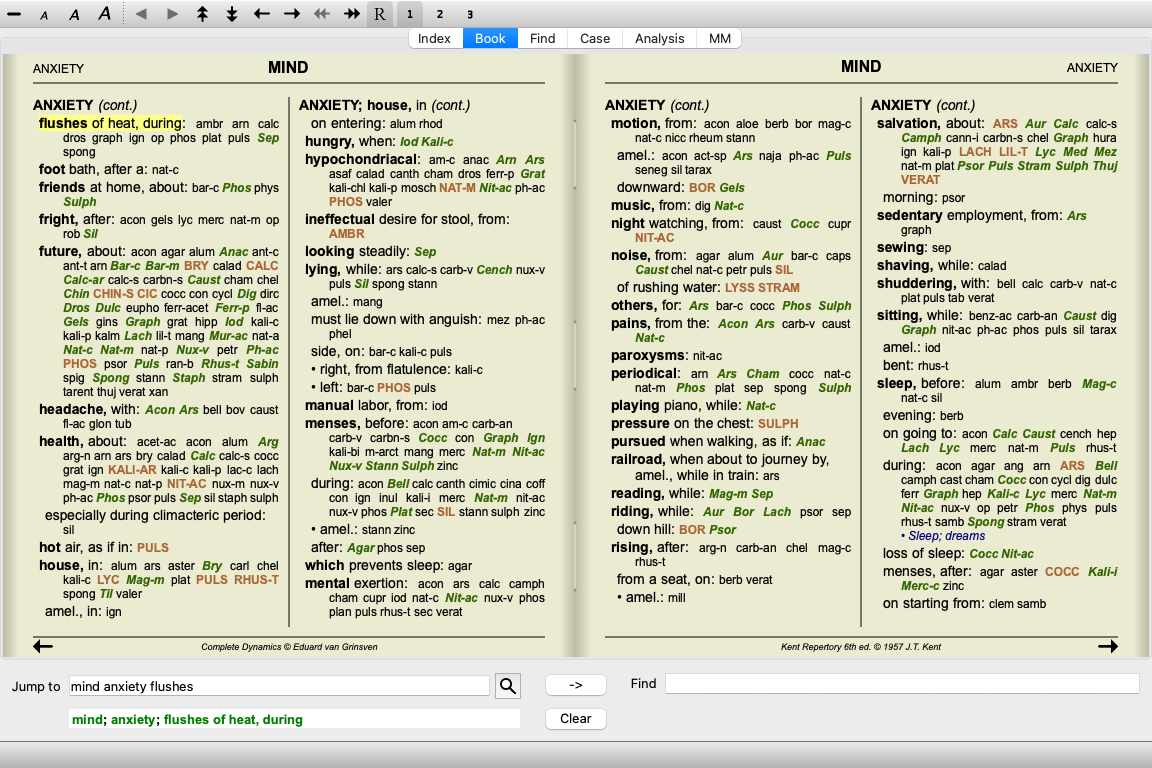
In the following example, the book is opened at the rubric Mind; Anxiety; flushes of heat, with.
The book layout automatically is automatically adjusted when you resize the window.
When you make the window larger, the book will be displayed in an esthetic double page layout:
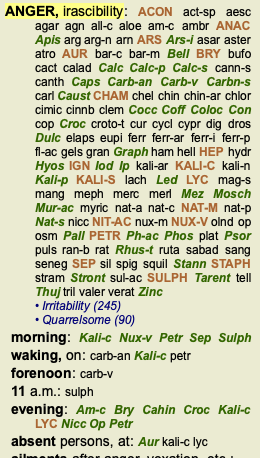
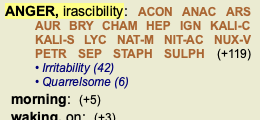
A rubric shows its text, followed by Remedies and References.
Remedies can be shown in 4 gradations.
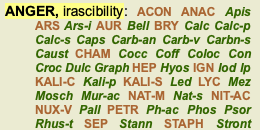
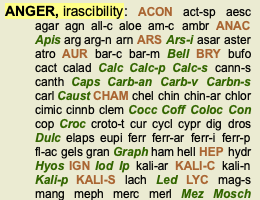
The gradations are distinguished by showing them in different syles and colors.In this example, these are:
- 3: acon, anac, ars, aur, bry, cham ...
- 2: Apis, Ars-i, Bell, Calc, Calc-p, Calc-s ...
- 1: act-sp, aesc, agar, agn, all-c ...References to other rubrics follow the list of remedies.
Simple click on the reference to jump to the rubric referred to.
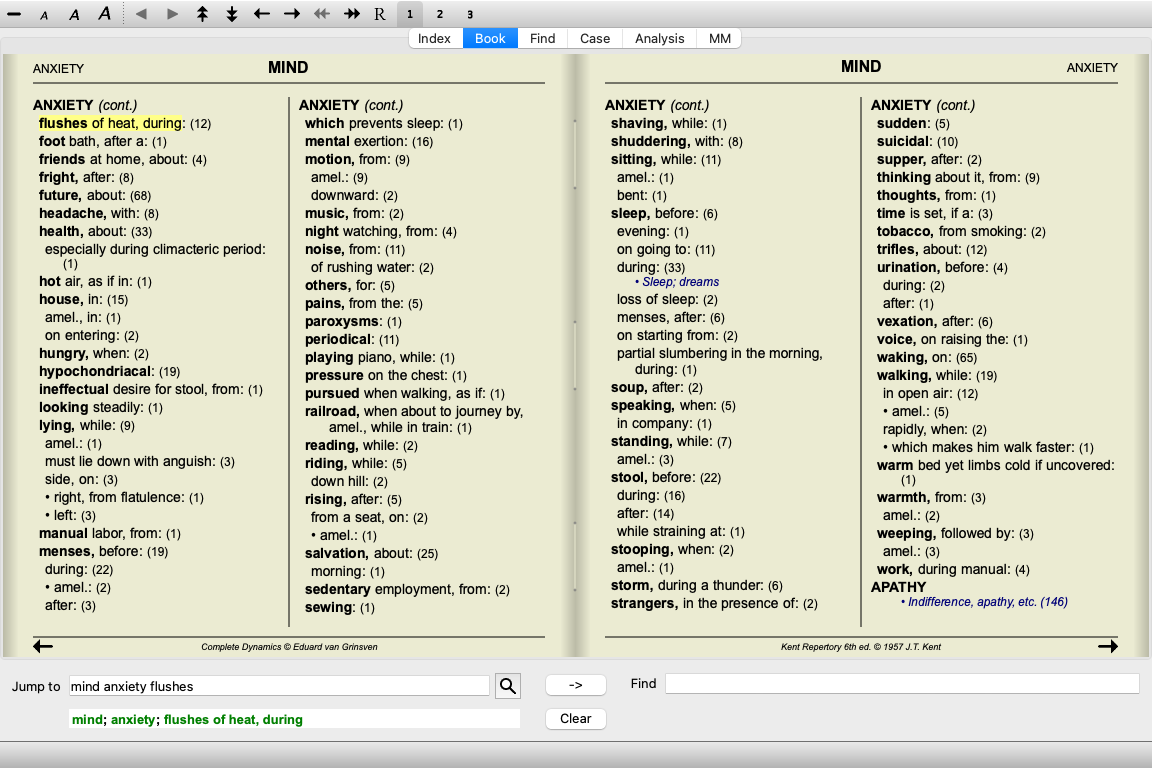
In compact view, only rubrics are shown, with the number of remedies they contain, hiding the remedies to optimally use the available screen space. (Menu option View / Remedies / Show remedies, toolbar button  ). Use the space bar to toggle between full view and compact view.
When you press the space bar twice, the references will also be hidden, showing only the rubric names. To hide or show all remedies and references, double click on any white space of the page. You can also double click on a rubric label.
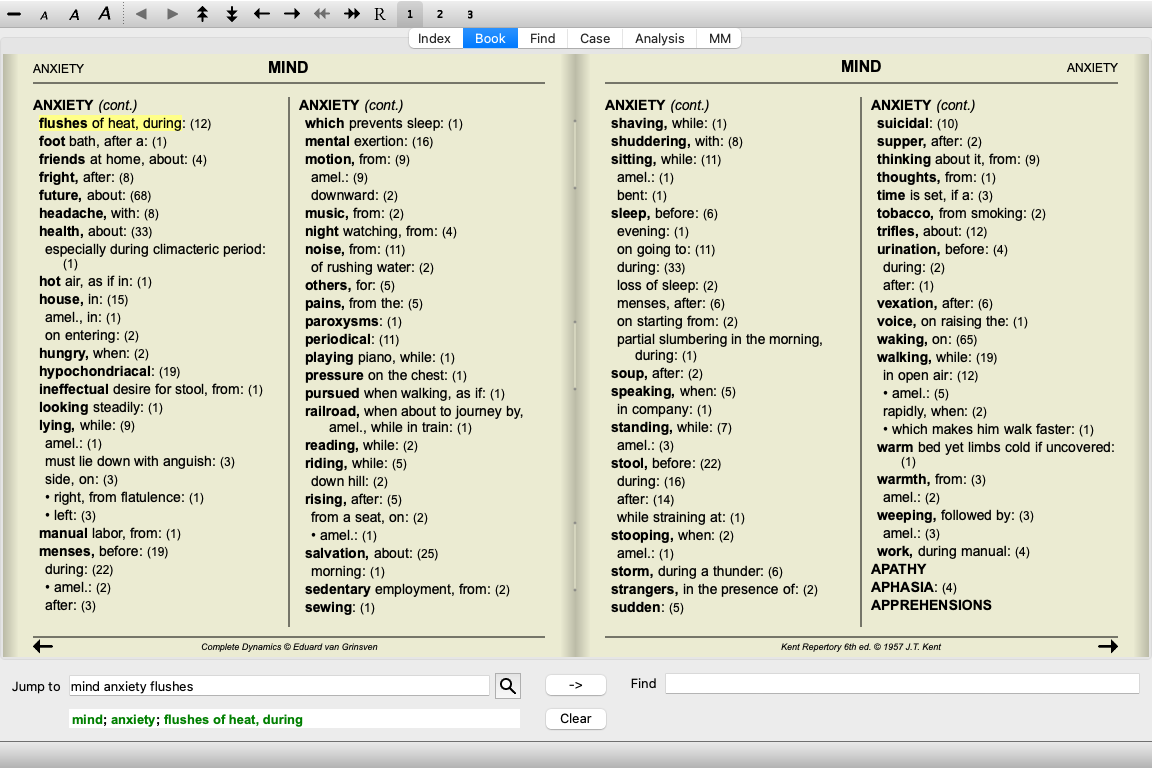
It is also possible to hide all sub rubrics, thus showing only the top level rubrics of the repertory. (Menu option Book / Main rubrics only, popup menu option Main rubrics only).
This option is extremely useful for people who want to learn the structure of the repertory.
You can easily go back to showing all rubrics. (Menu option Book / Main rubrics only, popup menu option Main rubrics only).
You can also switch back to the normal repertory view by clicking on a rubric.
In addition to switching between full and compact view, it is possible to limit the number of remedies shown.
This is done by pressing the keyboard keys 1, 2, 3, or 4. This will limit the shown remedies to only those that have at least the given gradation 1, 2, 3, or 4. (Menu option View / Remedies / All grades, toolbar button  , menu option View / Remedies / Grade 2+, toolbar button
  , menu option View / Remedies / Grade 3+, toolbar button
  , popup menu option Remedies / All grades, popup menu option Remedies / Grade 2+, popup menu option Remedies / Grade 3+).
Press keyboard key 3. Press keyboard key 2. Press keyboard key 1.
All remedies are shown.
Text can be made smaller or larger. (Menu option View / Smaller text, toolbar button  , menu option View / Standard text size, toolbar button
  , menu option View / Larger text, toolbar button
  , popup menu option Smaller text, popup menu option Standard text size, popup menu option Larger text).
Button Action Make text smaller. Original text size. Make text larger.
Navigating through the book can be done with the keyboard, mouse, button bar, or menu (Menu / Navigate menu).
Mouse scrolling is done with the small wheel on the mouse, or with the track pad built into laptops. Some mice have a scroll wheel that can only scroll up and down, modern mice can often also scroll left and right. Left/right scrolling can be disabled via the Preferences settings in the menu, if considered inconvenient.
Button Keyboard Mouse Action ↑ Scroll up Previous rubric. ↓ Scroll down Next rubric. Shift-↑ Shift-Scroll up Previous main rubric. Shift-↓ Shift-Scroll down Next main rubric. Control-↑ Alt-Scroll up Previous rubric at same level. Control-↓ Alt-Scroll down Next rubric at same level. ←
Page UpScroll left Previous page. →
Page DownScroll right Next page. Shift-← Shift-Scroll left Previous chapter. Shift-→ Shift-Scroll right Next chapter. Control-← Jump back in history.
Use this after following a reference to another rubric, to go back to where you came from.Control-→ Jump forward in history.
Used in combination with the previous option. These two work like the keys commonly used in web browsers, to go backwards and forwards between web pages.
Sometimes it is useful to copy a rubric to the clipboard and paste it into another application, like a word processor. (Popup menu option Copy / Copy rubric label, popup menu option Copy / Copy rubric and remedies).
You can copy the name of a rubric to the clipboard with Cmd-C (Control-C).
If you press Cmd-C twice (within a second), the rubric name is copied, together with all remedies in the rubric.